OSH Document

User Guide

Walk through download, enrollment, approval, and connecting to servers with OSH Client.

Open Figma

Download OSH Client

1. Download OSH Client here
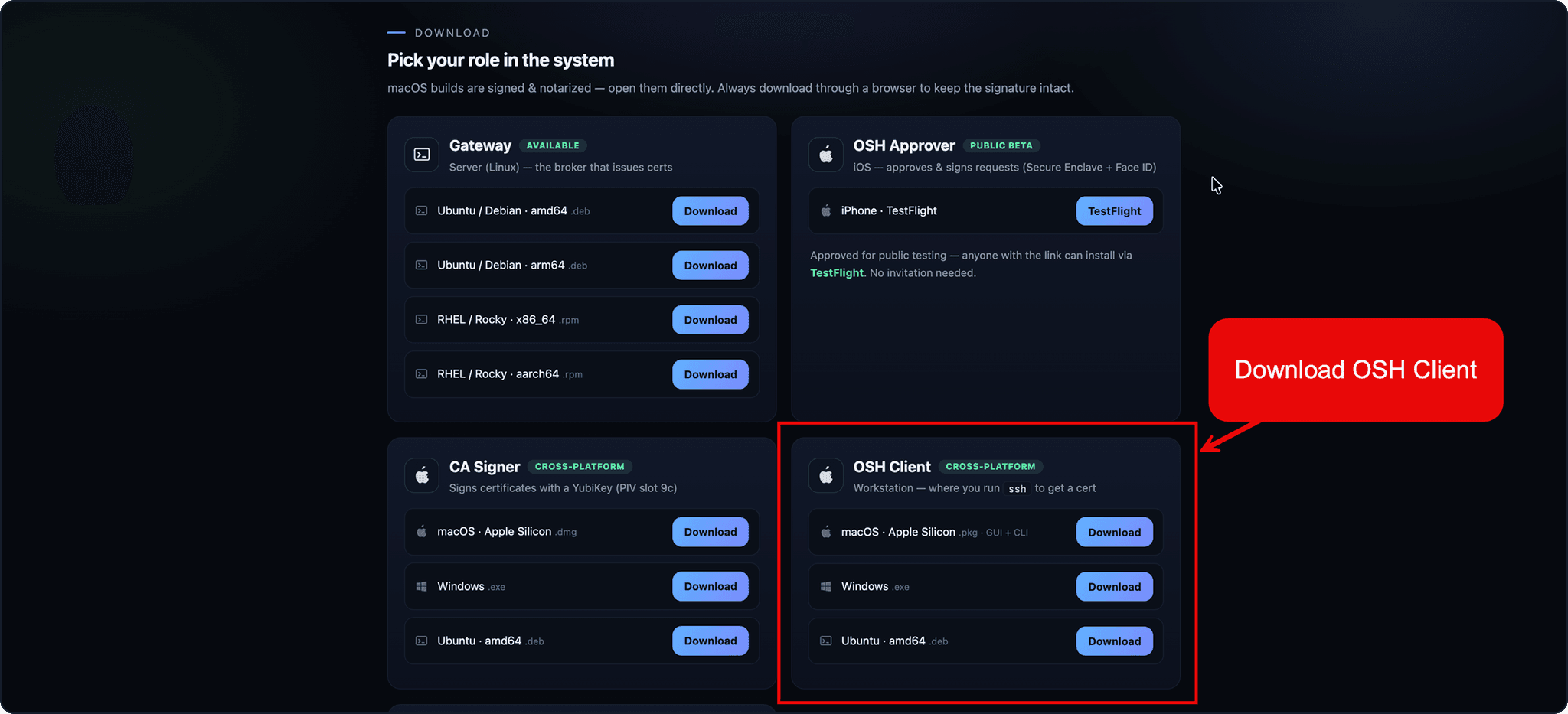
OSH download page highlighting the OSH Client card with macOS, Windows, and Ubuntu download options

Enroll your device

2. Enroll your device
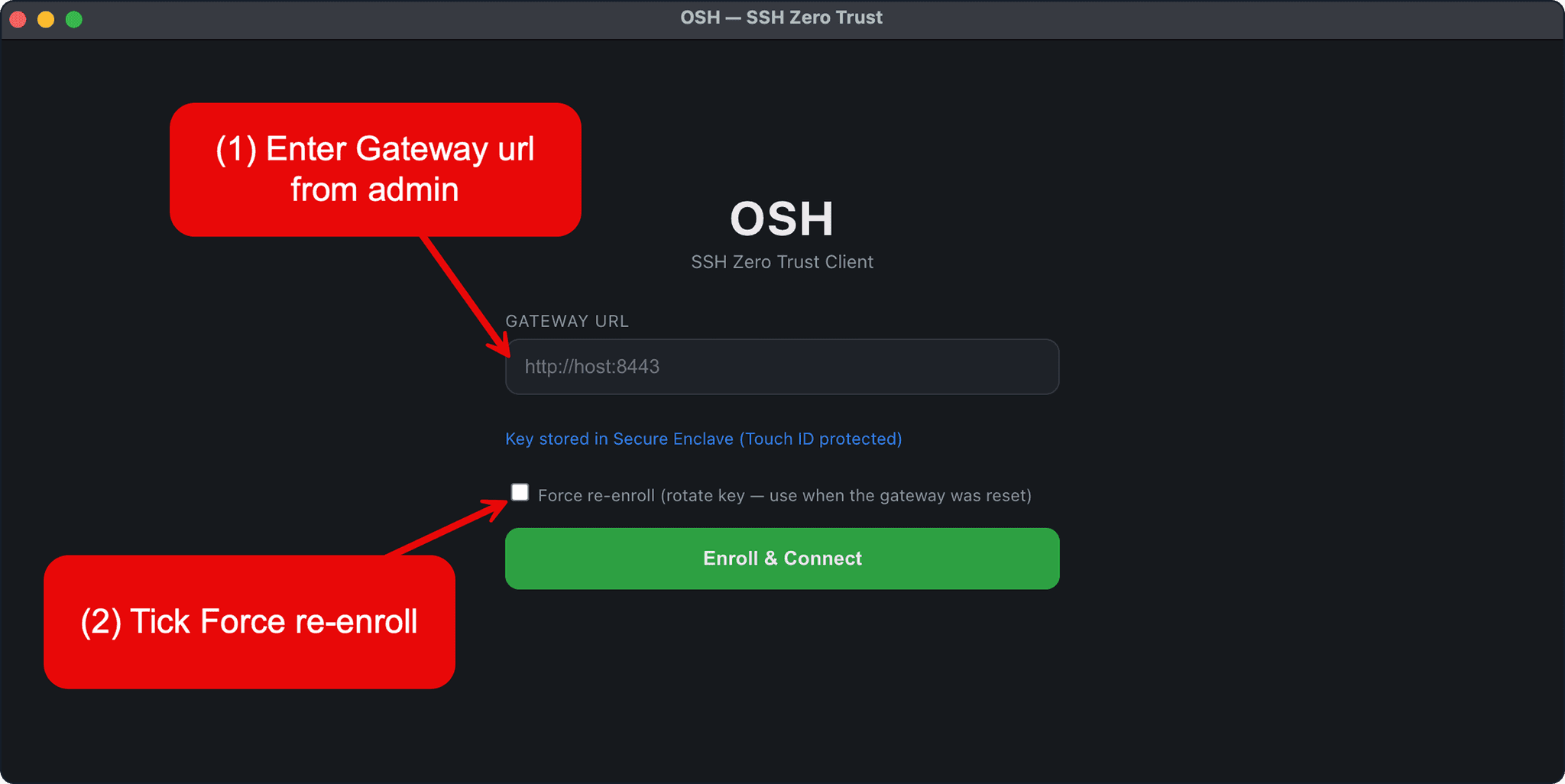
OSH Client enrollment page highlighting the Gateway URL field and Force re-enroll checkbox

Wait for approval

3. Wait for approval
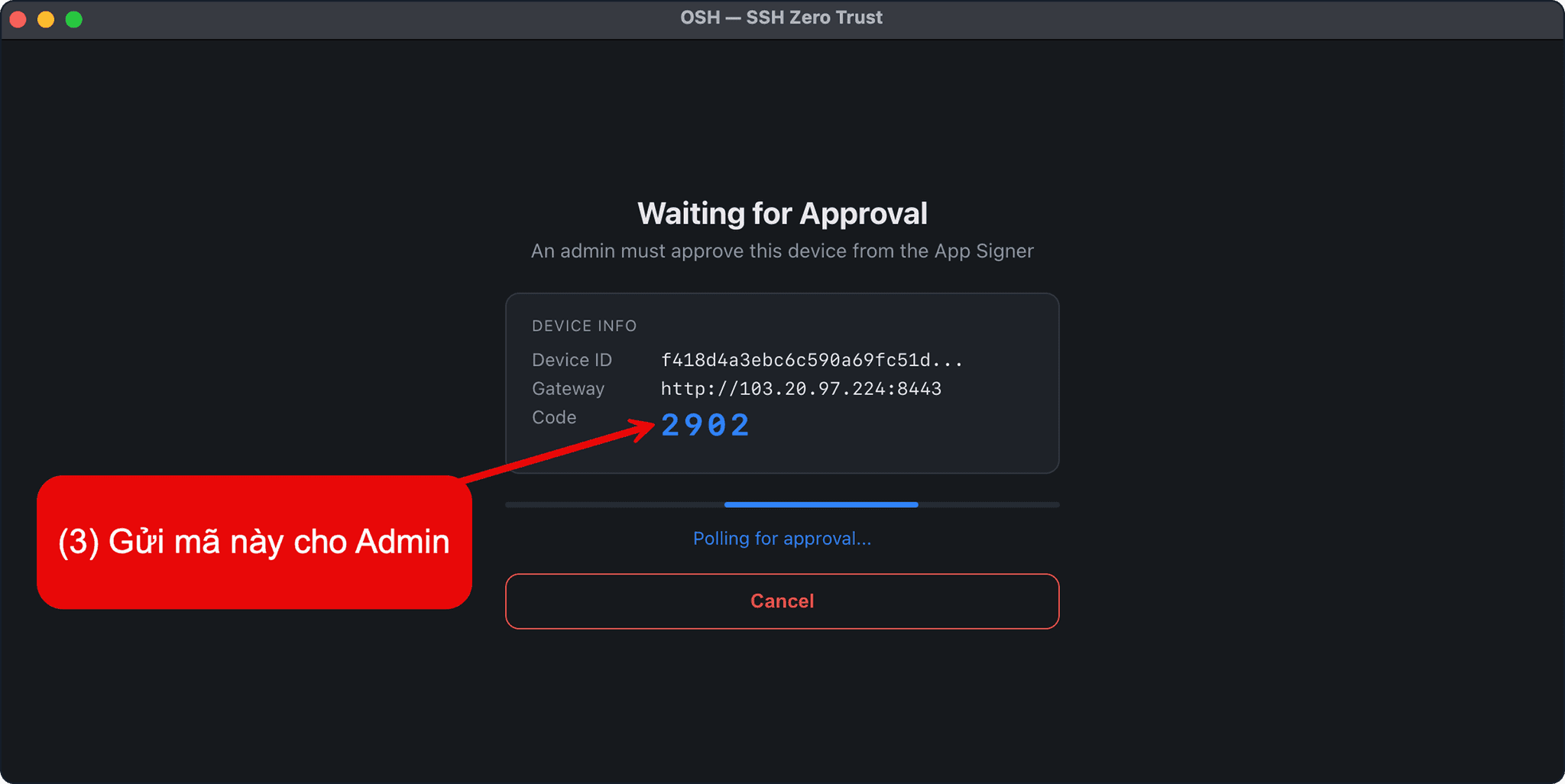
OSH Client waiting for approval screen highlighting the device code to send to an admin

Connect to the server

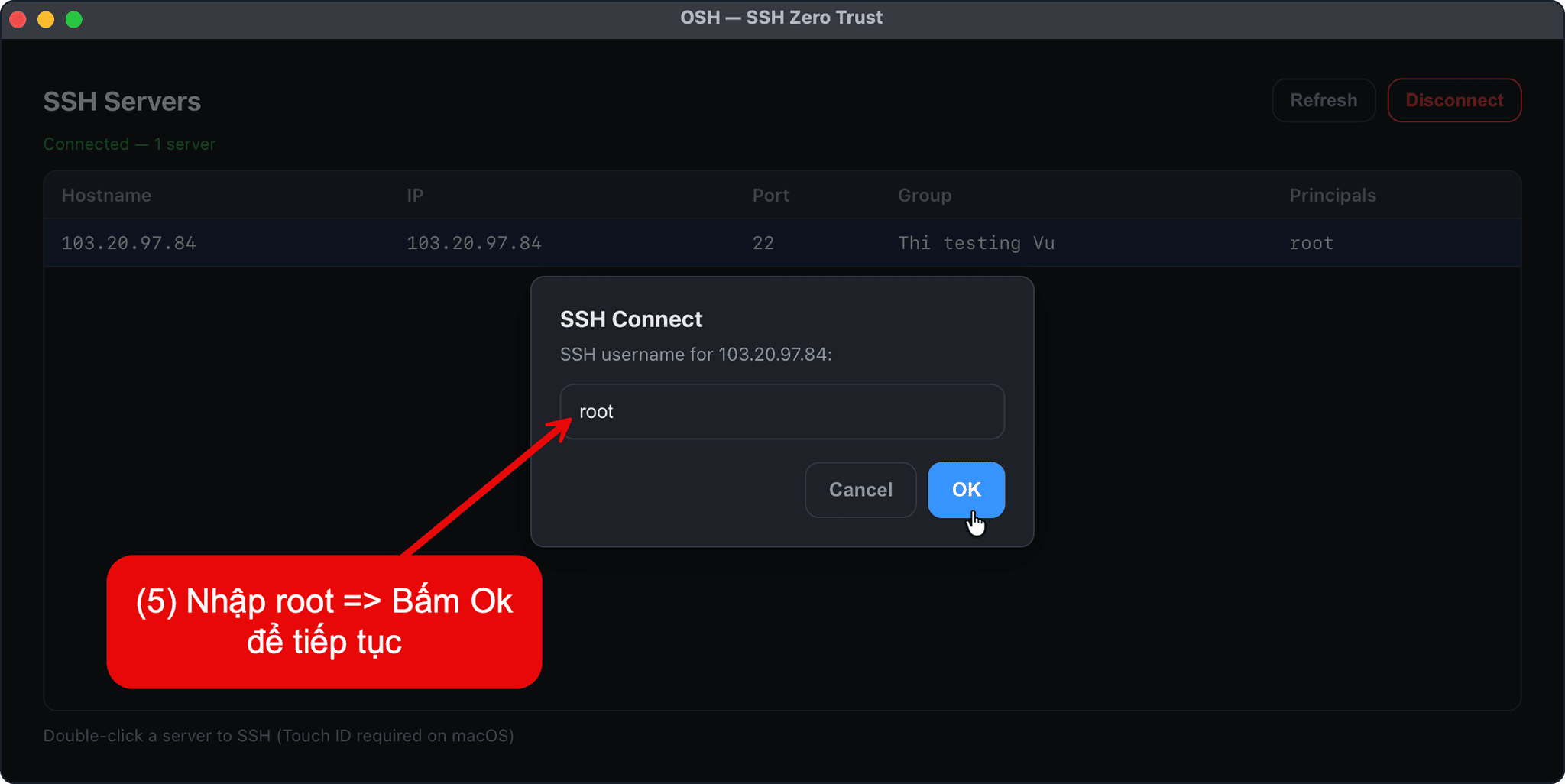
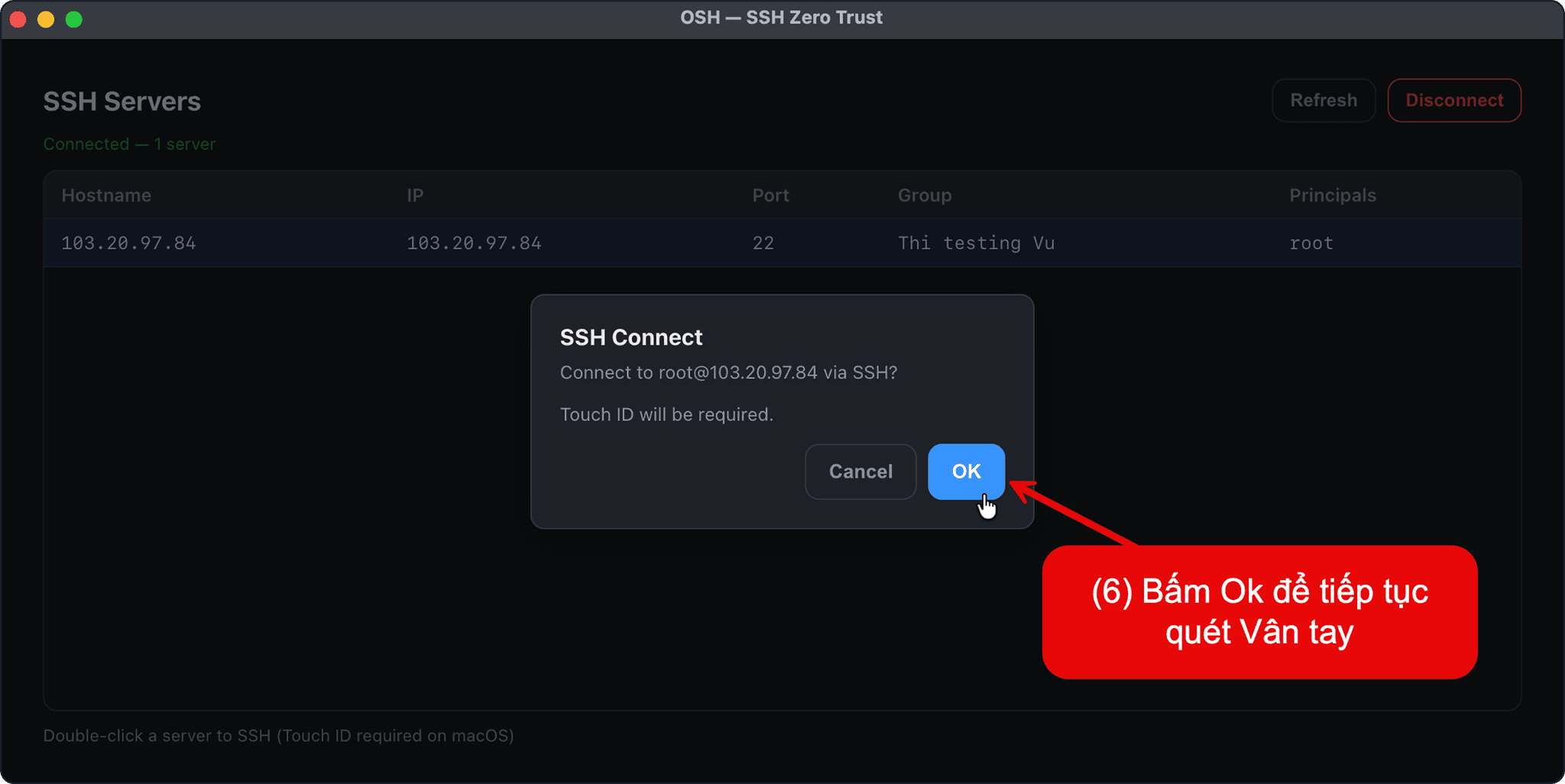
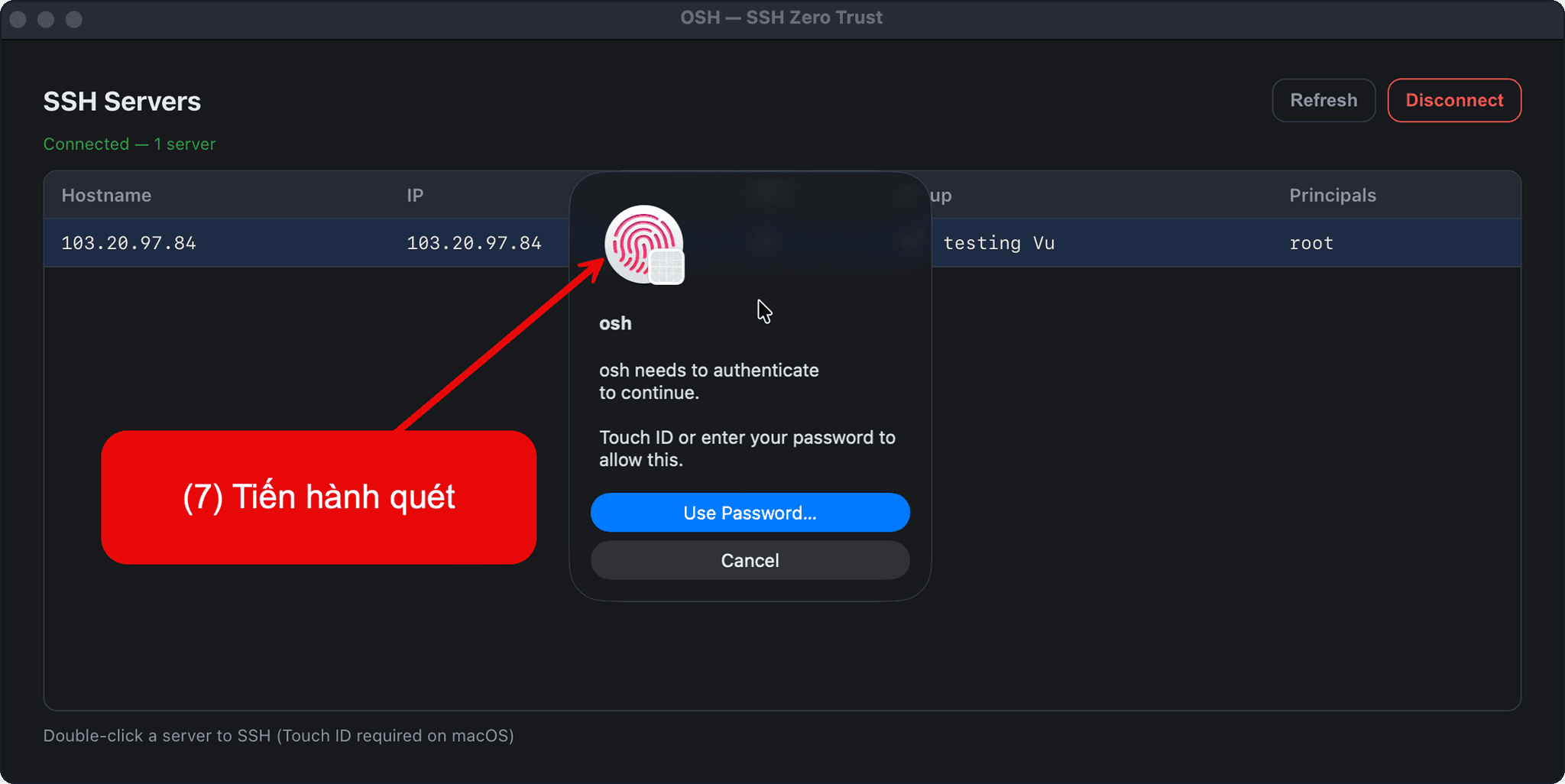
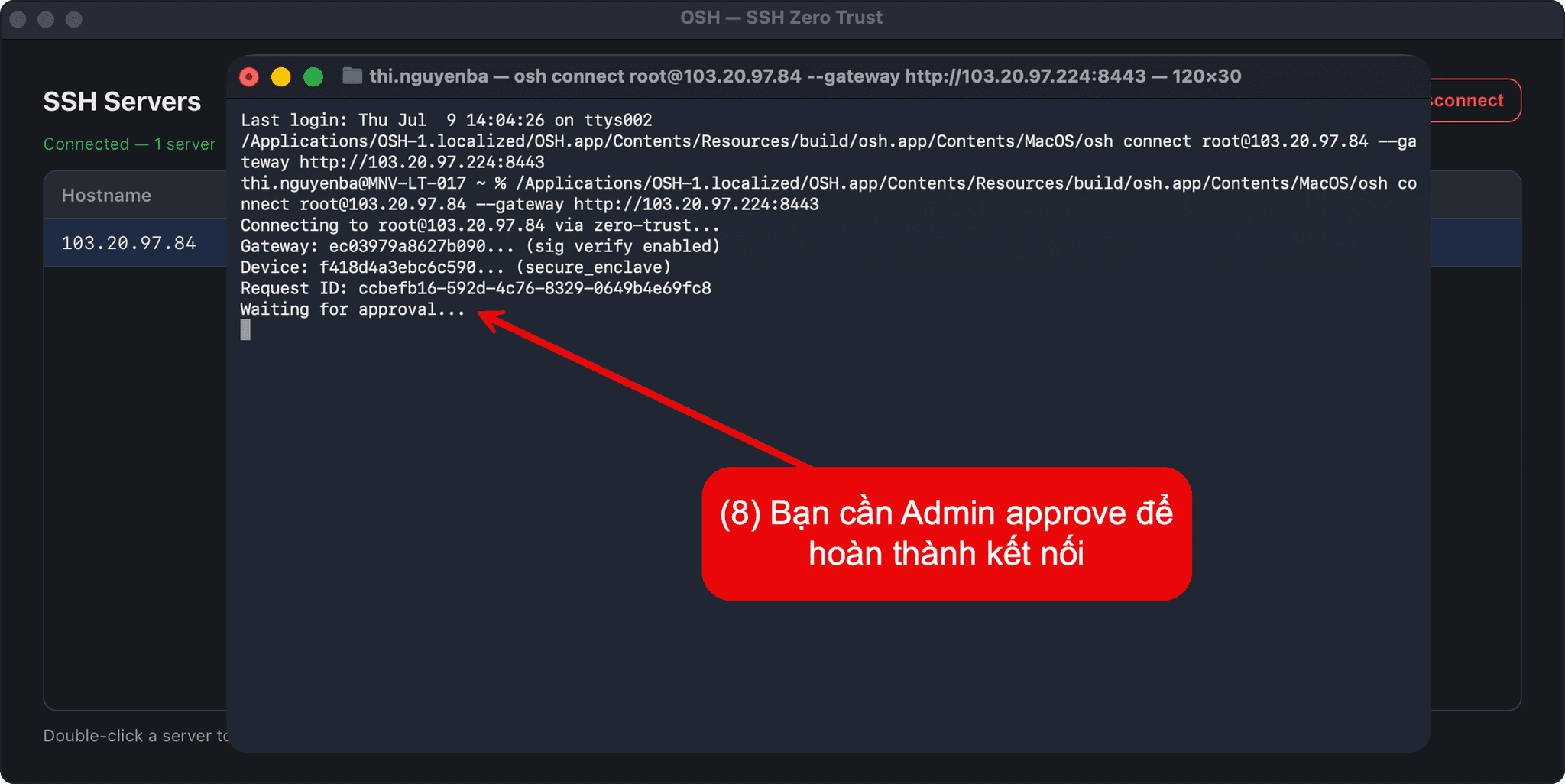
4. Connect to the server
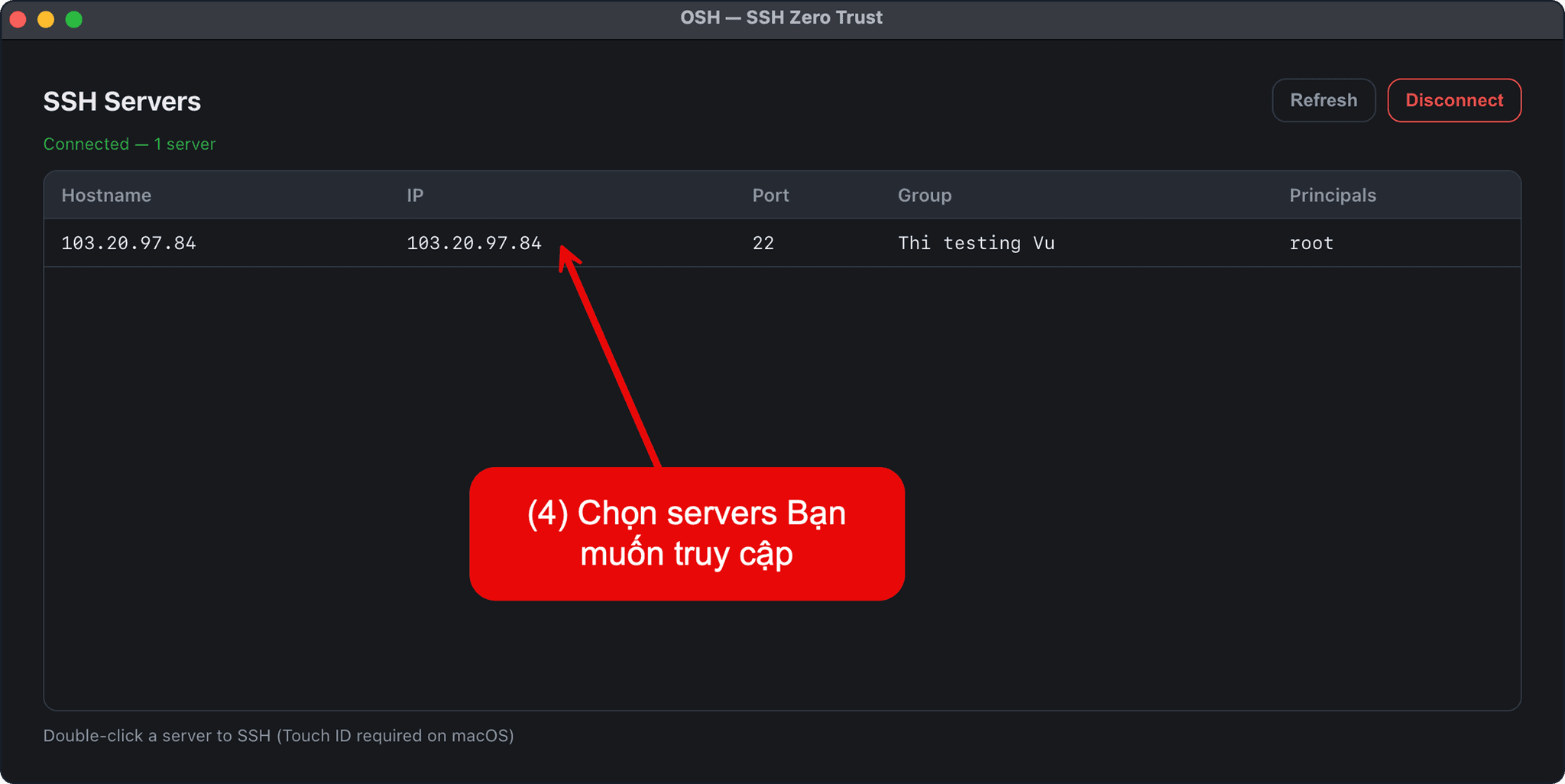
OSH Client SSH Servers list highlighting the server row to double-click for SSH accessOSH Client SSH connection dialog highlighting the connection details and authentication optionsOSH Client SSH connection dialog highlighting the connection details and authentication optionsOSH Client SSH connection dialog highlighting the connection details and authentication options

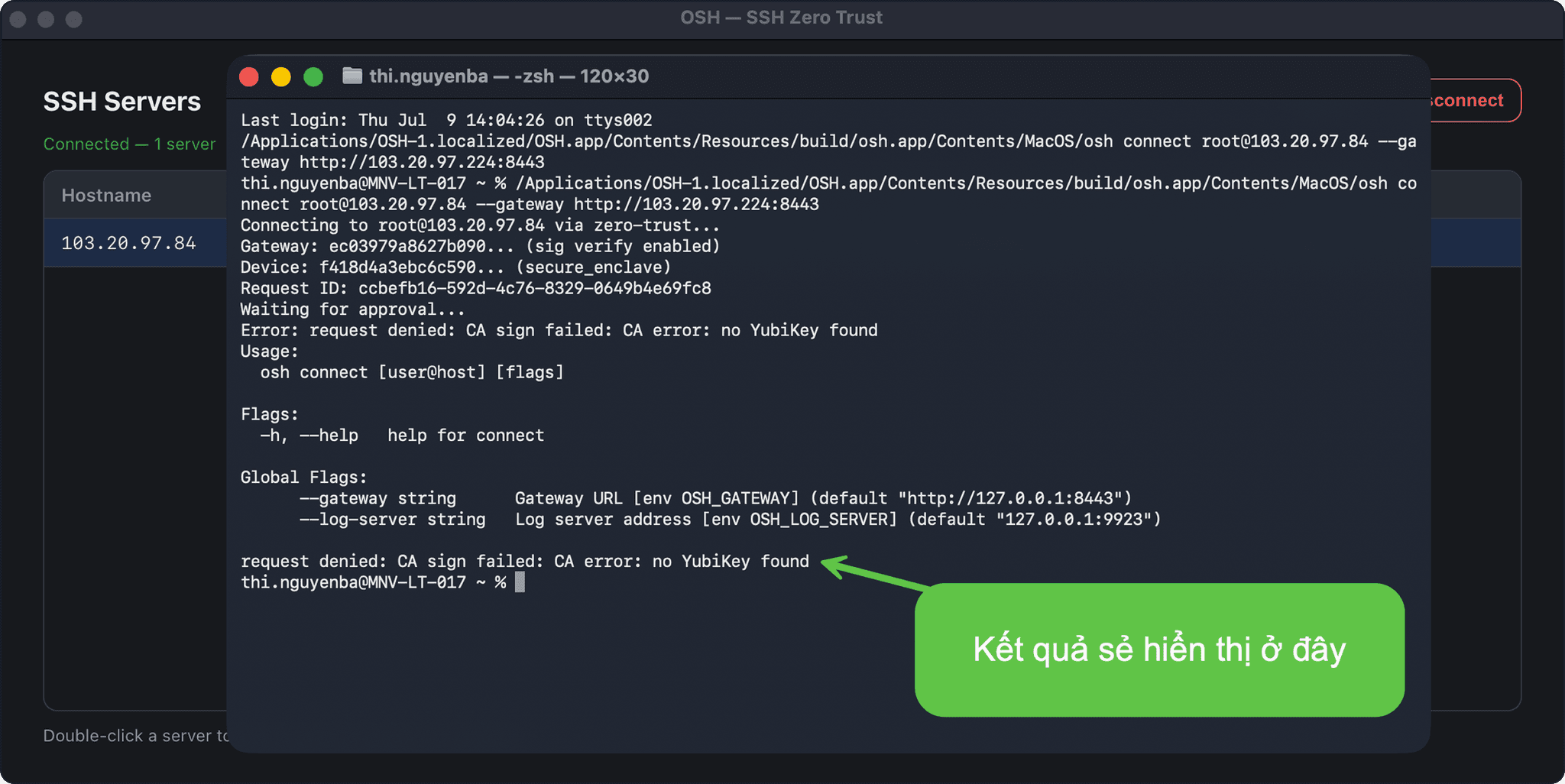
Access results

5. Access results

OSH Client results page highlighting the results and access codeOSH Client results page highlighting the results and access code